Why your own booking page
Every appointment that comes in by text or phone call is an interruption. You stop cutting, look for a gap in your calendar and send a message back. A booking page does that work for you, in the evening and on your day off too.
A booking page only works if clients find it and if it is right. A page with wrong times or unclear services creates more messages, not fewer. So start with the basics, then share it.
1. Set up your services properly
Clients choose what they come in for. Use names they use too: “Haircut”, “Haircut + beard”, “Skin fade”. Keep the list short; ten variations of almost the same thing makes choosing hard.
For each service you set a duration and a price. Make the duration generous enough, including payment and getting your chair ready. A duration that is too tight means you run late all day. The guide on structuring your prices and services goes deeper.
2. Is your schedule right?
Your booking page only shows times when you are actually available. Barberwise takes those from your schedule, your breaks and the length of the service. If you work with a team, set the schedule for every barber. Clients choose their barber themselves or leave the choice open.
Do not forget days off and holidays. Add them as exceptions to the schedule, so nobody can accidentally book on a day you are closed.
3. Book a test appointment yourself
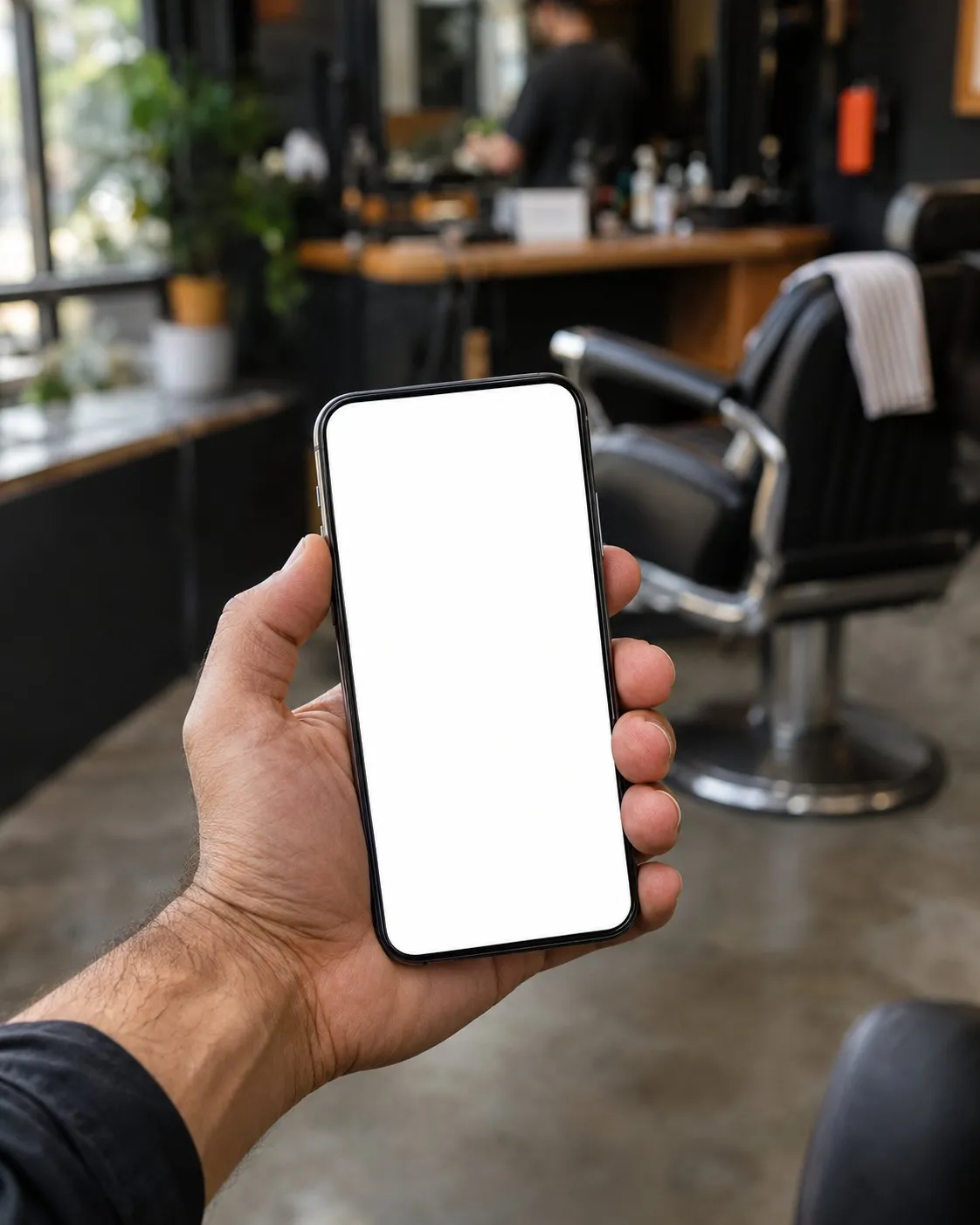
Open your booking page on your phone and make an appointment the way a client would. Pick a barber, a service and a time. You will see right away whether the times are right and what the confirmation looks like. Clients get that confirmation by email straight away, with a link to reschedule or cancel themselves, up to 24 hours before the appointment.
Running more than one shop? Every location has its own booking page. Test them all.
4. Put your link where clients look for you
A booking link nobody sees does nothing. Put it where clients already look for you:
- Instagram: put your booking link in your bio. Point to “link in bio” in your posts and stories.
- Google: add your booking link to your Google Business Profile, as the website or appointment link. Anyone who looks up your shop on Google Maps can go straight to your booking page.
- Your own website: add a clear “Book an appointment” button that links to your booking page, at the top of the page.
- In the shop: mention it when a client leaves: “Next time you can also book online.” Regulars often pick it up quickly.
5. Stick to one link
Use the same link everywhere. If it changes, clients end up on an old page. Switching from another system? Replace your old link everywhere at the same moment.
Start with the basics
You do not have to do everything at once. Services, schedule, a test appointment and the link in your Instagram bio: that gets your booking page live quickly. The rest follows.